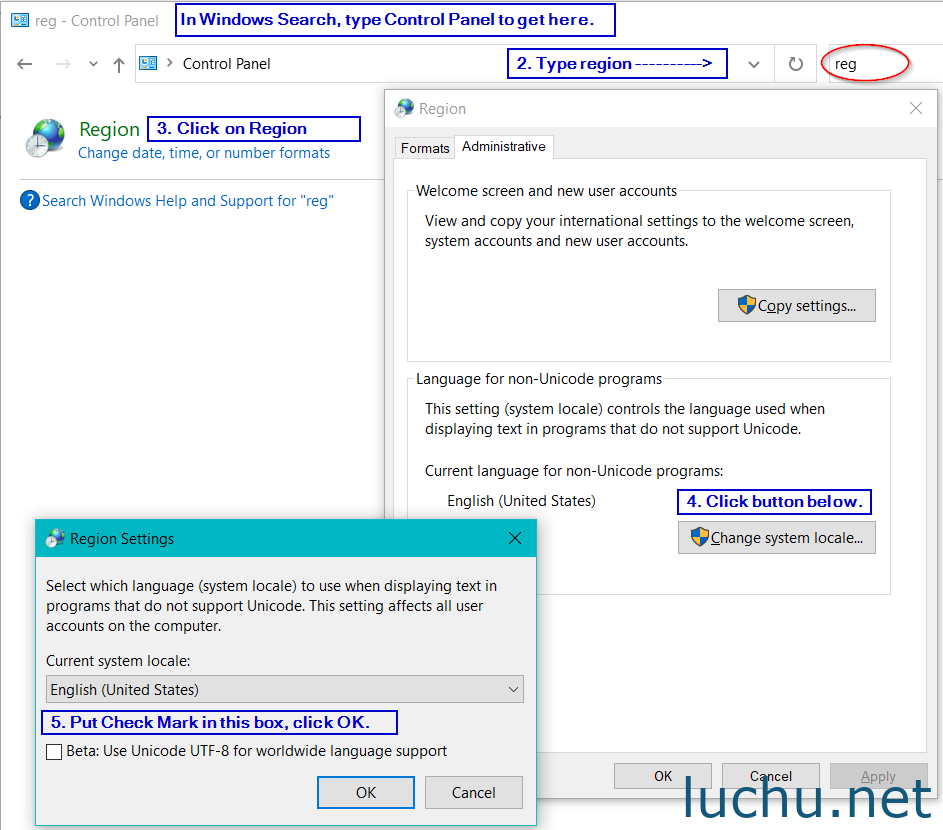
If you are using an English (or other Latin-based languages) Windows PC, there might be compatibility issues with non-Latin character archives (including Japanese, Korean, Chinese, etc.). You can try enabling Windows UTF-8 worldwide support.
Instructions:
- Open “Control Panel.”
- Select “Clock and Region.”
- Click “Region.”
- In the window that appears, switch to the “Administrative” tab.
- Click the “Change system locale…” button.
- Check the box for “Beta: Use UTF-8 for worldwide language support.”
- Click “OK,” then restart your computer.
Enabling UTF-8 worldwide support might solve your software issue but could cause other compatibility problems.
If you encounter software garbled text issues, please return here to disable this option.